Install notes · Seat 13
XE88 app install notes: the iPhone trust steps and the rest
XE88 logs in with just a user name and password. Getting the iPhone build to open takes a trip into Device Management; the steps and the catches are below.
The XE88 login screen asks for very little: a User Name box with a drop-down arrow, a Password box, a language button set to English, a Remember Password tick and a Login button. Getting to that screen on an iPhone is the fiddly part.
The old page offered XE88 for iPhone, Android and Windows, none of them from an app store. We don't host or link the files. For the slot list, see the XE88 platform page.
From Safari to Verified
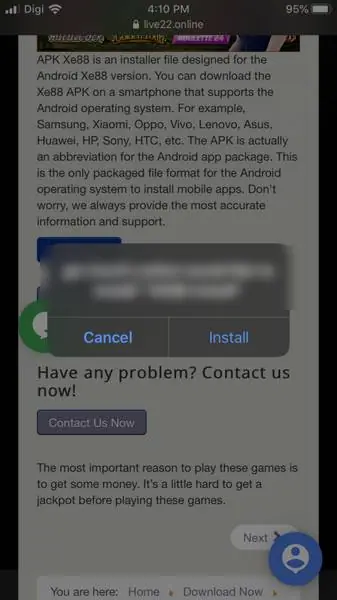
Choosing the iOS build pops up "would like to install 'XE88 Install'" from a web host, with Cancel and Install.
The icon shows "Installing..." and then turns into the XE88 logo. Tap it and you get "Untrusted Enterprise Developer": "iPhone Distribution: Mirror Image Services Limited" has not been trusted on this iPhone.
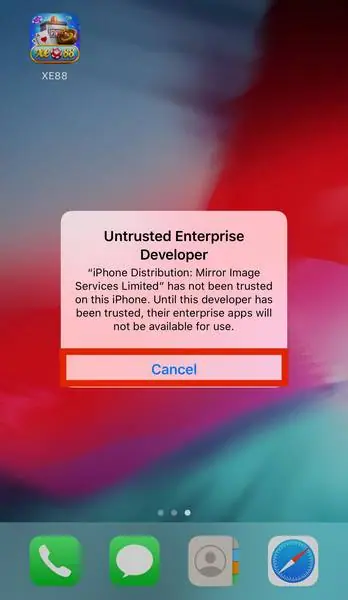
From there, the screenshots go:
- Tap Cancel.
- Settings > General, then Device Management (it shows "Mirror Image Services..." beside it).
- Tap Mirror Image Services Limited under Enterprise App.
- Tap the blue Trust line, then Trust in the confirmation box.
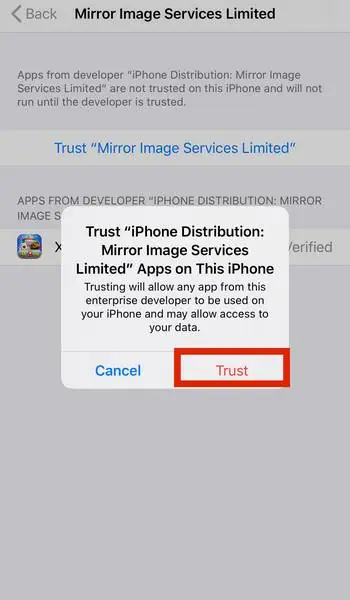
That box is worth one slow read. It says trusting lets any app from this developer run "and may allow access to your data". The certificate isn't tied to XE88 alone, and certificates like this get pulled. When that happens the app stops launching until you get a new build.
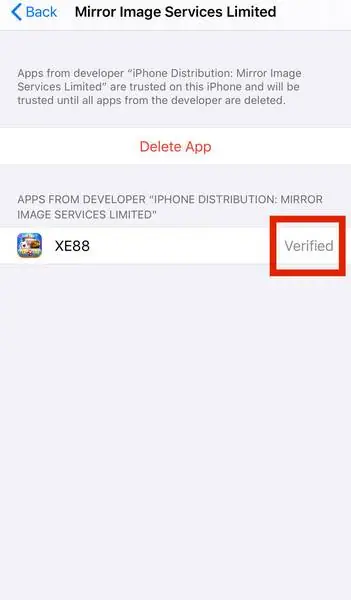
Verified means you're done. The red Delete App button on that same page is the easy way to remove it later.
Android and Windows
No step screenshots for either. On Android, expect a "this type of file can harm your device" warning and an "Install unknown apps" switch for your browser; flip it back off afterwards. On Windows, SmartScreen will probably flag the installer. Check the file came from where you think it did before running it.
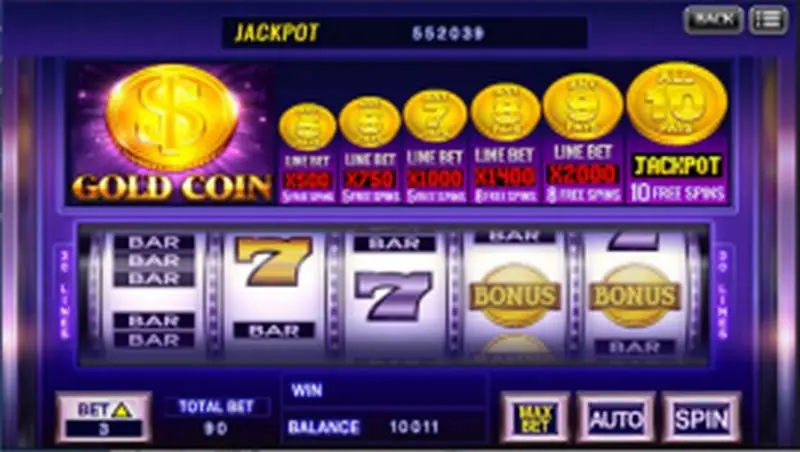
Inside, the slots look like the Gold Coin shot at the top: a gold coin paytable from 5 to 10, 30 lines, and Bet, Max Bet, Auto and Spin along the bottom. Your user name and password come from an agent, as there's no sign-up in the app. You can get an XE88 user name if you need one. Keep that password separate from your banking one, and say no to any permission a slot app shouldn't need, like contacts or SMS.
The downloads hub has the other platforms.
Ask the dealer: common questions
The XE88 icon says Installing and then gives an Untrusted Enterprise Developer error. What now?
Go to Settings > General > Device Management, tap Mirror Image Services Limited and trust it. Do this only if you trust where the file came from.
18+ only. Real-money games; online gambling is restricted in Malaysia. Never top up money you need, and stop if it stops being fun. Responsible gaming.